
Voice Access
Screenshots
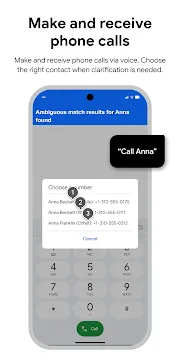


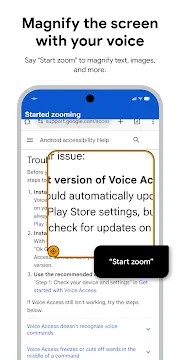

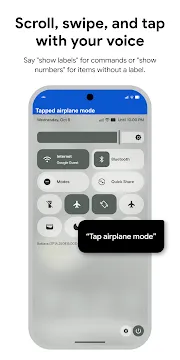
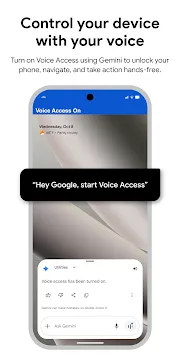
Voice Access gives users a completely hands-free mobile phone experience. You can manage your device without using your fingers. This specific tool supports users who struggle with fine motor skills. For instance, people with tremors benefit greatly from this system. However, anyone looking for convenience can use it. You simply talk to your smartphone or tablet. Then, the screen responds to your voice inputs. This text provides all the details about its functionality. You will learn the best methods to run it effectively. Furthermore, you will discover tips to optimize performance. This guide covers installation, commands, and basic troubleshooting steps.
What is Voice Access and How Does It Work?
Voice Access changes the way you interact with mobile technology. The tool overlays numbers on top of every clickable item on your screen. Therefore, you do not need to guess what to say. You can simply read the number aloud. For example, if a camera icon shows number five, you say “five.” Then, the system opens the camera instantly. This method eliminates confusion completely during daily operations.
In addition, the tool uses smart voice recognition technology. It understands natural speech patterns quite well. You can also use spatial grids for extreme precision. This feature divides your display into numbered zones. You say the zone number to zoom into that specific area. Afterward, you can click precise spots inside that zone. This mechanism ensures complete control over every minor element. Consequently, you can navigate complex websites without any physical strain.
Main Features of Voice Access
Voice Access contains many built-in tools to make navigation smooth. It divides operations into three primary categories. These categories help you master the control system quickly.
- Core Navigation: You can go home, go back, or open your notifications panel.
- Text Editing: You can type words, edit sentences, or delete paragraphs easily.
- Screen Interaction: You can scroll up, click buttons, or swipe left and right.
Furthermore, the system runs silently in the background. It only listens when you activate it. This prevents accidental commands during casual conversations with friends. Consequently, your personal data remains secure while you use the device. The system responds to your speech in real time. Therefore, you experience zero delay during your daily tasks. It makes managing your phone incredibly smooth.
How to Set Up Voice Access Quickly
Setting up Voice Access requires only a few minutes of your time. First, you must download Voice Access APK and install it. Then, you need to open your device settings. Navigate directly to the accessibility menu. Find the tool name in the available list. After that, toggle the switch to enable it immediately.
Next, you must grant necessary permissions to the software. The tool requires microphone access to hear your commands clearly. It also needs screen overlay permissions to display numbers properly. Then, follow the on-screen setup tutorial. This tutorial teaches you basic phrases and actions. Finally, choose how you want to start the tool. You can use a dedicated activation button. Alternatively, you can use a specific voice command.
Benefits of Navigating via Voice Access
Voice Access offers incredible advantages for people requiring hands-free operation. Primarily, it gives independence to users with physical limitations. People with arthritis or paralysis can manage their communications alone. Therefore, they do not need constant assistance from family members.
Additionally, the tool enhances productivity for multitasking individuals. For example, you can reply to text messages while cooking dinner. You can also scroll through work articles while holding tools. Because it reduces physical strain, you avoid finger fatigue completely. Your daily mobile device interaction becomes entirely stress-free. Consequently, your overall efficiency increases throughout the workday. You finish tasks much faster than before.
Essential Commands for Every User
Learning basic commands makes using Voice Access a great experience. You should memorize a few phrases to get started immediately.
- To open tools: Say “Open” followed by the app name clearly.
- To scroll lists: Say “Scroll down” or “Scroll up” to move pages.
- To select items: Say “Tap” followed by the specific item number.
- To type text: Say “Type” and state your message out loud.
Moreover, you can use advanced editing shortcuts. Say “Delete line” to remove typos fast. You can also say “Select all” to highlight your entire text box. Then, say “Undo” if you make an unexpected mistake. These phrases give you complete mastery over text input fields. As a result, you save time during long writing sessions. Writing emails becomes a breeze.
Troubleshooting Tips
Sometimes, Voice Access might encounter minor performance issues. However, you can fix most problems with simple steps. If the tool does not hear you, check your microphone hardware. Dust might block the hardware port. Therefore, clean it gently with a dry cloth or toothpick.
Furthermore, ambient background noise can confuse the speech recognition engine. Try to use the tool in quiet environments whenever possible. If the numbers disappear from the screen, restart the service in settings. Turning it off and on often clears temporary glitches. Additionally, keep your device operating system updated. Updates ensure compatibility and fix underlying software bugs permanently.
Conclusion
Voice Access changes how people interact with modern mobile devices. The software eliminates the absolute necessity of physical touch screens. Instead, it relies on simple voice commands and numbered overlays. This setup benefits individuals with disabilities and busy multitaskers alike. Therefore, it creates a fully inclusive environment for everyone. By following this guide, you can successfully set up the tool. You can now enjoy full control over your smartphone hands-free.